
In today's article, we will deep-dive into the Nagios - an open source server/service monitoring system. It tracks the availability and performance of IT infrastructure such as servers, services, network devices, and applications. It alerts admins when something goes wrong, helps ensure uptime, and provides insights via dashboards and reports.
Environment setup
We will run our environment using docker (docker-compose in fact).
For this, we will setup and run Nagios in a docker-compose as shown below:
volumes:
  nagios_data:
    driver: local

services:
  nagios:
    image: manios/nagios:latest
    privileged: true
    container_name: monitoring_nagios
    ports:
      - 8081:80
    restart: always
    volumes:
      - ./nagios/objects:/opt/nagios/etc/objects
      - ./nagios/nagios.cfg:/opt/nagios/etc/nagios.cfg
      - nagios_data:/opt/nagios/var/
    environment:
      - NAGIOSADMIN_USER=nagiosadmin
      - NAGIOSADMIN_PASS=nagiosadmin
      - NAGIOS_TIMEZONE=UTC
      - NAGIOS_WEB_USER=nagiosadmin
      - NAGIOS_WEB_PASS=nagiosadmin
Here, we are defining our container name as `monitoring_nagios`, which will expose to 8081 of our host machine (is mapped to 80 of the container).
We need to setup some configuration files at first, and we are volume mounting these files, so that we can make changes from outside the container and additionally, the changes will persists and be saved to disk, instead of lost on restart or container destroy.
So, create folder nagios/ which will have two things:
- nagios.cfg - main config file nagios runs with. we map this to `/opt/nagios/etc/nagios.cfg` of the container.
- objects - directory which will contain other objects config files, and is mapped to /opt/nagios/etc/objects directory of the container.
After setting up these things, let's spin up our container:
`docker-compose up -d`
This should start our container, confirm by:
`docker ps` or `docker-compose ps`
Now, visit http://localhost:8081, and you shall see the nagios UI:
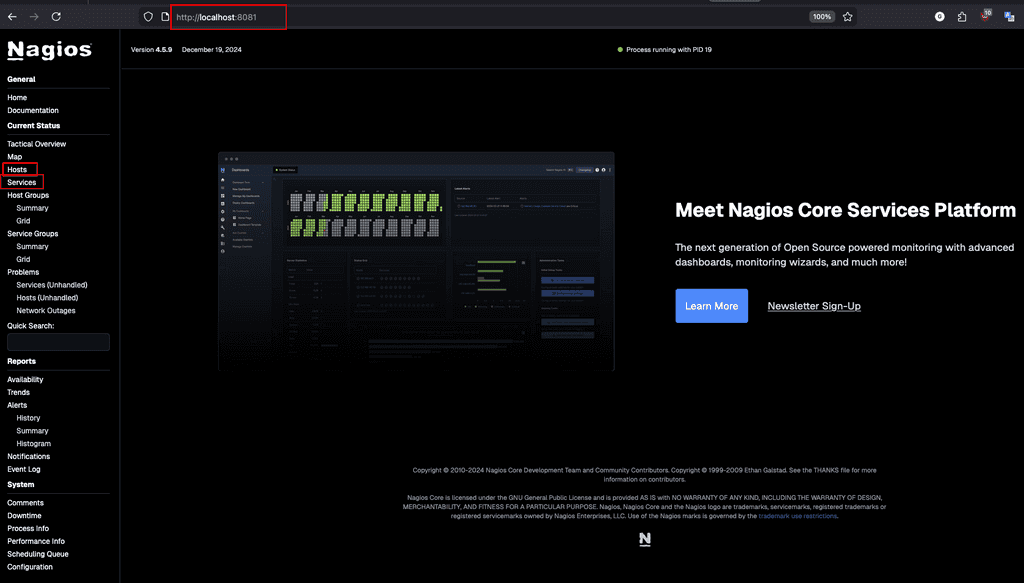
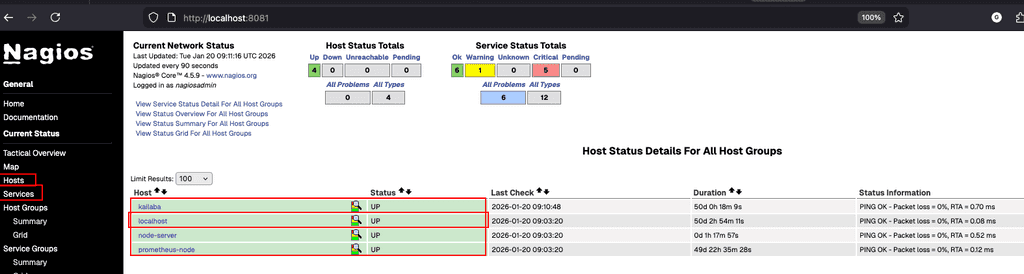
If you check the hosts, it will show you localhost (which is added by default).
These are the current hosts shown on my setup:
Adding new hosts
Now, we will see how to add new hosts to our Nagios Monitoring:
To add new host, let's add a host element in our objects/hosts.cfg file:
define host {
        use             template-host
        host_name       kailaba
        alias           kailaba
        address         192.250.235.20
}

define host {
        use             template-host
        host_name       ubuntu-server
        alias           ubuntu
        address         192.168.64.6
}

define host{
    host_name       prometheus-node
    address         127.0.0.1
    use             template-host
}


define hostgroup {
        hostgroup_name  web-server
        alias           web-server group
        members         kailaba
}
Now, save the file, container up again to take new file, then restart the container to start with new configuration file.
`docker-compose up -d`
`docker restart monitoring_nagios`
you can exec into the container, to see if the config file (/opt/nagios/etc/objects/hosts.cfg) has updated or not. You can also verify the config file, with:
`/opt/nagios/bin/nagios -v /opt/nagios/etc/nagios.cfg` command.
If everything is well, our newly added hosts will be shown:
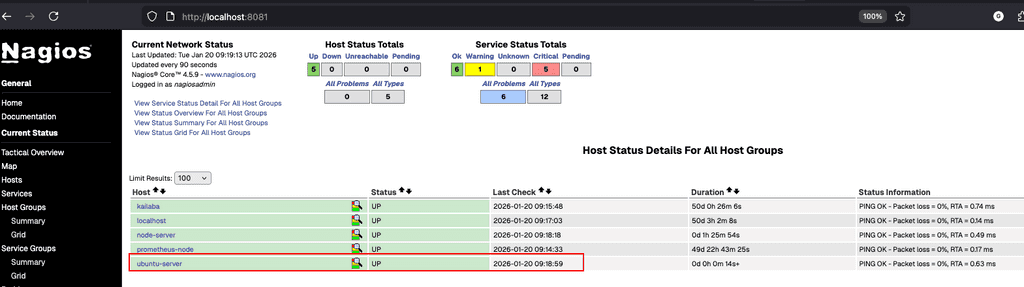
Voila, you see!!!
adding services to monitor
Now, next, we can add few services to monitor, for example, whether port 80 is running or not, or many more.
These are our current services on my environment:
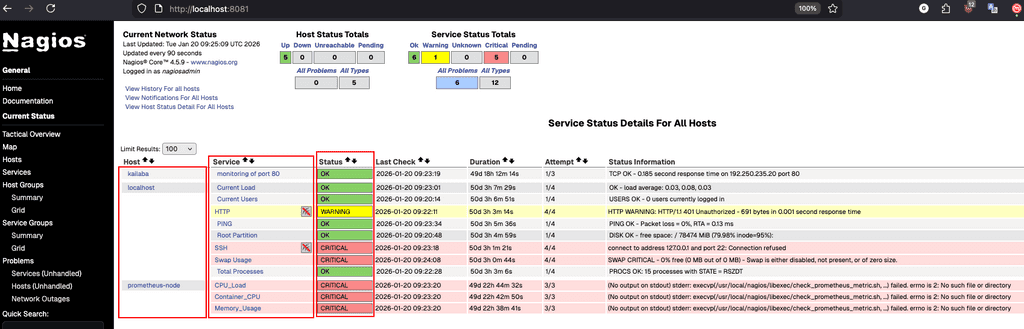
Since, we are not monitoring any services yet on our newly added host, it doesn't show our host. Let's add some services to monitor on our new host.
Here, this `ubuntu-server` is my virtual machine, running Ubuntu 22.04. Thus, let's add a service to check for port 80.
We start this by adding a service definition in our objects/services.cfg file:
# Adding this service to the existing services.cfg

define service {
	use			generic-service
	host_name		ubuntu-server
	service_description	monitoring of port 80
	check_command		check_tcp!80
}
Here, we define a service to monitoring for port 80. We specified our host on which we want to monitor this service, which is `ubuntu-server`.
Here, the command check_tcp!80 is defined in the objects/commands.cfg file. Thus, we can add our own custom commands as well, which we could monitor by simply calling it in this file.
Let's save the file, restart the container and verify if our config is synced.
If everything goes well, voila, you should see:
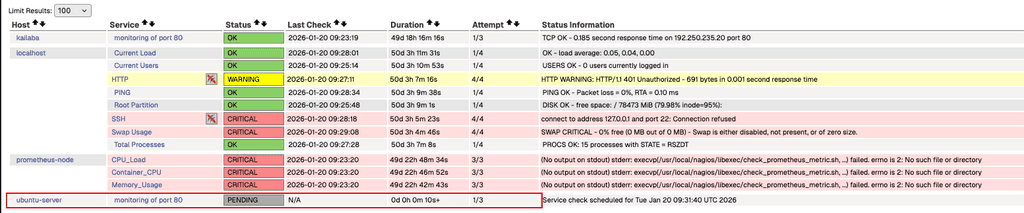
You see, new service is added.
But, wait, it is still in Pending status.
Since, port 80 is not serving on our ubuntu-server host, the status shows: CRITICAL, Connection refused.

Let's start port 80 and reschedule the service check.

Now, let's wait for next check.
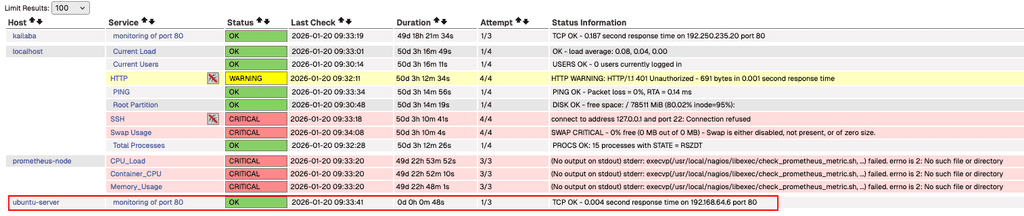
Voilaa, you can see now Nagios can monitor the port 80 on our ubuntu-server.
We can add many more such services, or monitoring such as CPU, Memory usage, and so on.
In next article, we will leverage the visualization power of Grafana along with Prometheus, for real-time monitoring and visualisation.