
Ahh, Goshh!!
What would be more frustrating than your development version is not working as expected to that of public version. Recently, while I was working on an important update of our beloved EL Computer, I came to an issue of frustrating moment with failure on Google authentication login. It took all my head figuring out what's going wrong here, because, it was/is working fine with current publicly available version, and even on web version of EL Computer, and everything seems fine, perfectly fine. I re-downloaded the google-services.json file and uploaded to app directory, on my project. Nothing helped ;(
Then, I came to realize that I need to add my signing key's SHA1 and SHA256 fingerprints to my firebase project to it to recognize my development app. I had lost my previous upload key, hence, I had obviously new upload key, thus need to add it's SHA1 and SHA256 fingerprints too. Ahh, if you also have lost your upload key, you can request for reset as I described in this article here.
Aaahhh, it's the feeling that you get when you figure out something and immediately you have a gut feelings, an intuitive faith burning inside you that "Yes, it will surely work." I got the same energy, wow, I was super excited to follow the procedures, as follow:
-
List out your singning key's SHA1 and SHA256 fingerprints by command:
keytool -list -v -keystore /path/to/your/key.keystore -alias uploadUpon prompting for password, enter your key password.
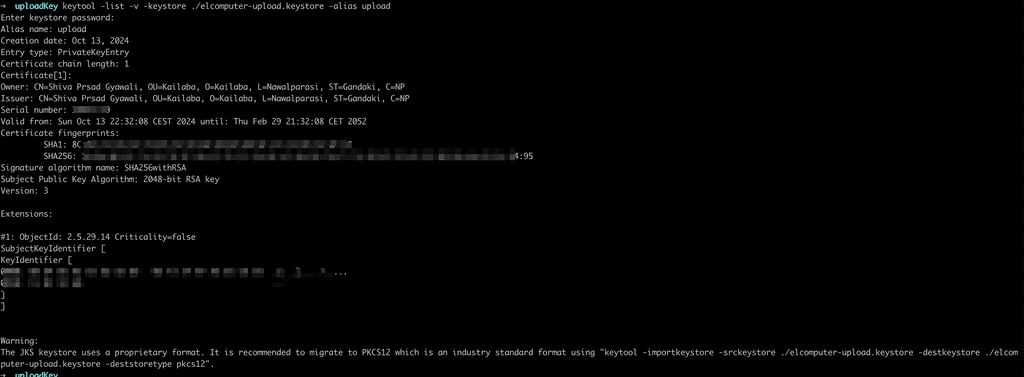
Listing fingerprints: upload keystore -
List out your debug key's SHA1 and SHA256 fingerprint by command:
keytool -list -v -keystore ~/.android/debug.keystore -alias androiddebugkeyUpon prompting for password, enter:
androidHowever, if you haven't generated or configured yourself your debug keystore, then, Android SDK generates this for you on the first time you run or build an Android app, and it's stored locally on your machine. It is used for development and testing purposes.
Location: ~/.android/
Tip: dols ~/.android/to see what other files are there.
What's inside ~/.android/ There is debug.keystore file.
It's alias is:
androiddebugkey
and, password is: android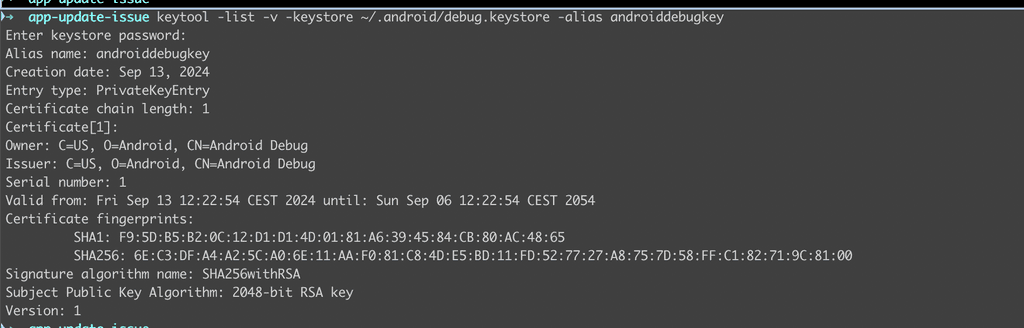
Listing fingerprints: default.keystore -
Add these 4 SHA1 and SHA256 on your firebase project:
-
Go to your project and scroll to Your App: Fingerprints
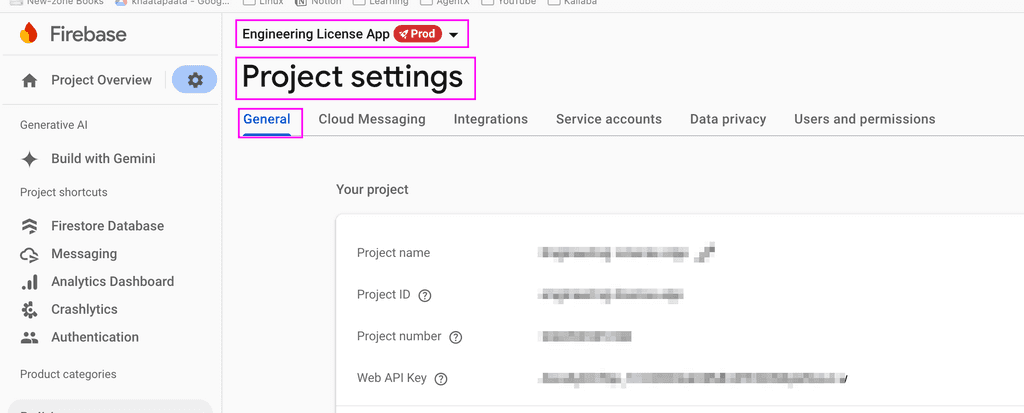
Firebase project settings page
Click on Add fingerprint: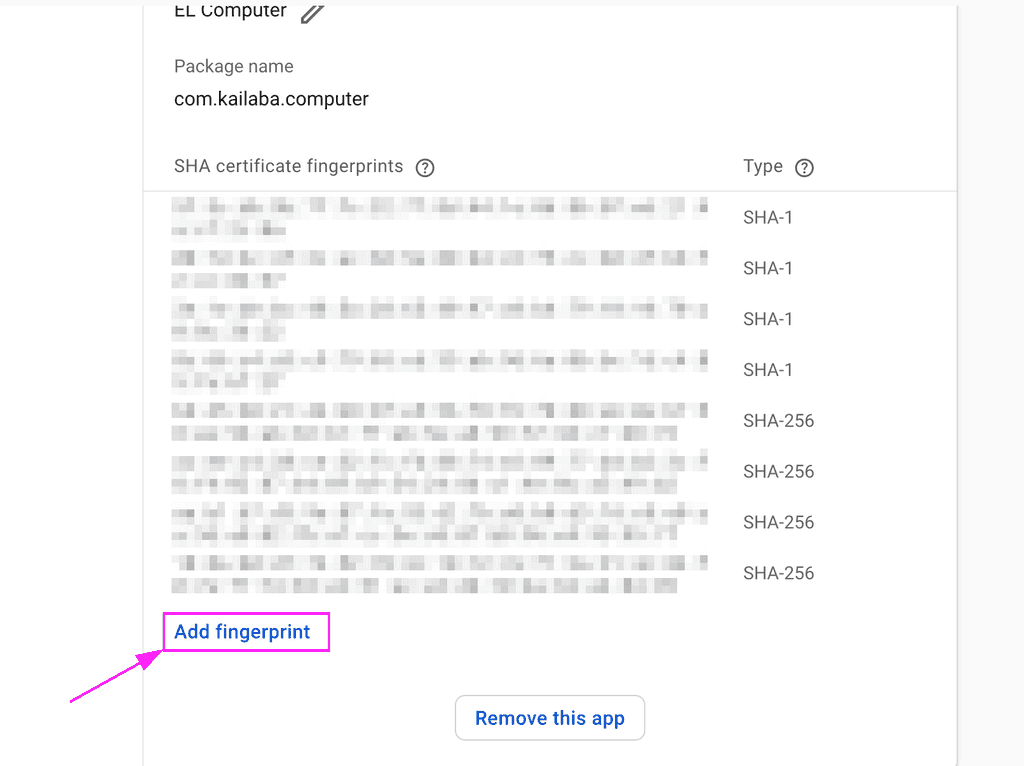
Add new fingerprint -
Add both keys
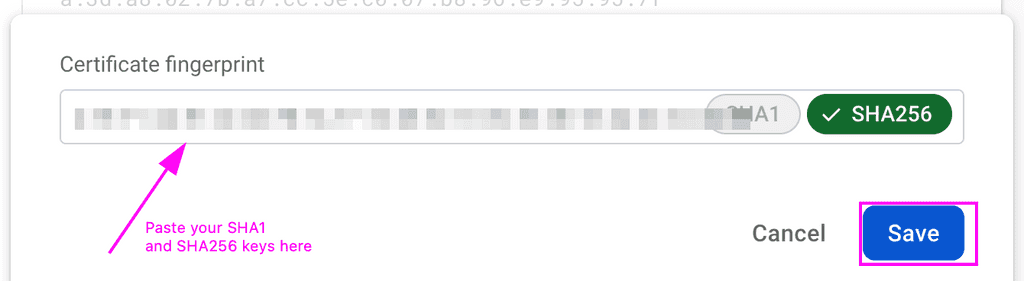
Adding your fingerprints -
After adding all keys, download google-services.json file
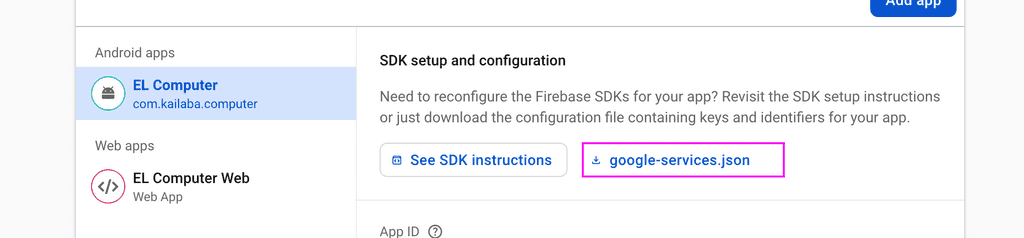
Download google-services.json -
Copy this just downloaded file to your project/android/app/ folder.
-
Bangg!! Just run your app in debug or release mode, and you can now be successfully login with your gmail authentication. And, it worked as our gut feeling already said it. Wow, just wow!!
I hope this helped you :) See you in next article.. Great learning....
I host my websites using babal host service. If you are looking for efficient hosting, I genuinely recommend based on my own experience:
